
Free for Windows and Mac
Every break,
a better game.
TappedIn puts up to four live games from your own TV service in one window. When a game cuts to commercial, its screen jumps to the best game that's live right now, and jumps back the moment play resumes.
- CFBCollege football
- NFLNFL
- MCBBMen's college basketball
- WCBBWomen's college basketball
- NBANBA
- WNBAWNBA
- NHLNHL
- MLBMLB
- MLSMLS
- EPLPremier League
- UCLChampions League
- LALIGALa Liga
- ATPATP
- WTAWTA
- 4live games in one window
- 6sports, each with its own break detector
- 14leagues, from college football to the WTA
- 2minutes to set up, about
One break.
Four beats.
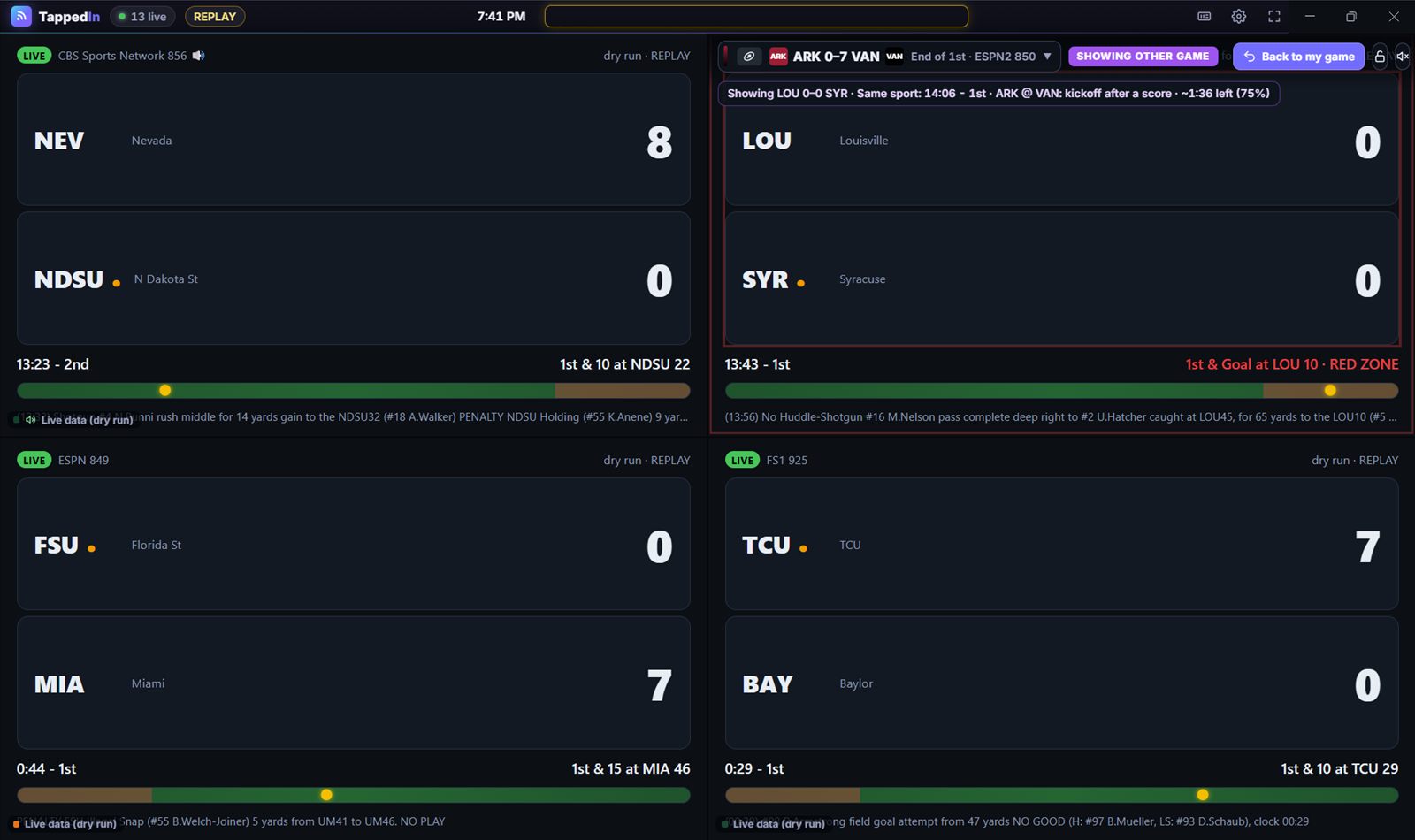
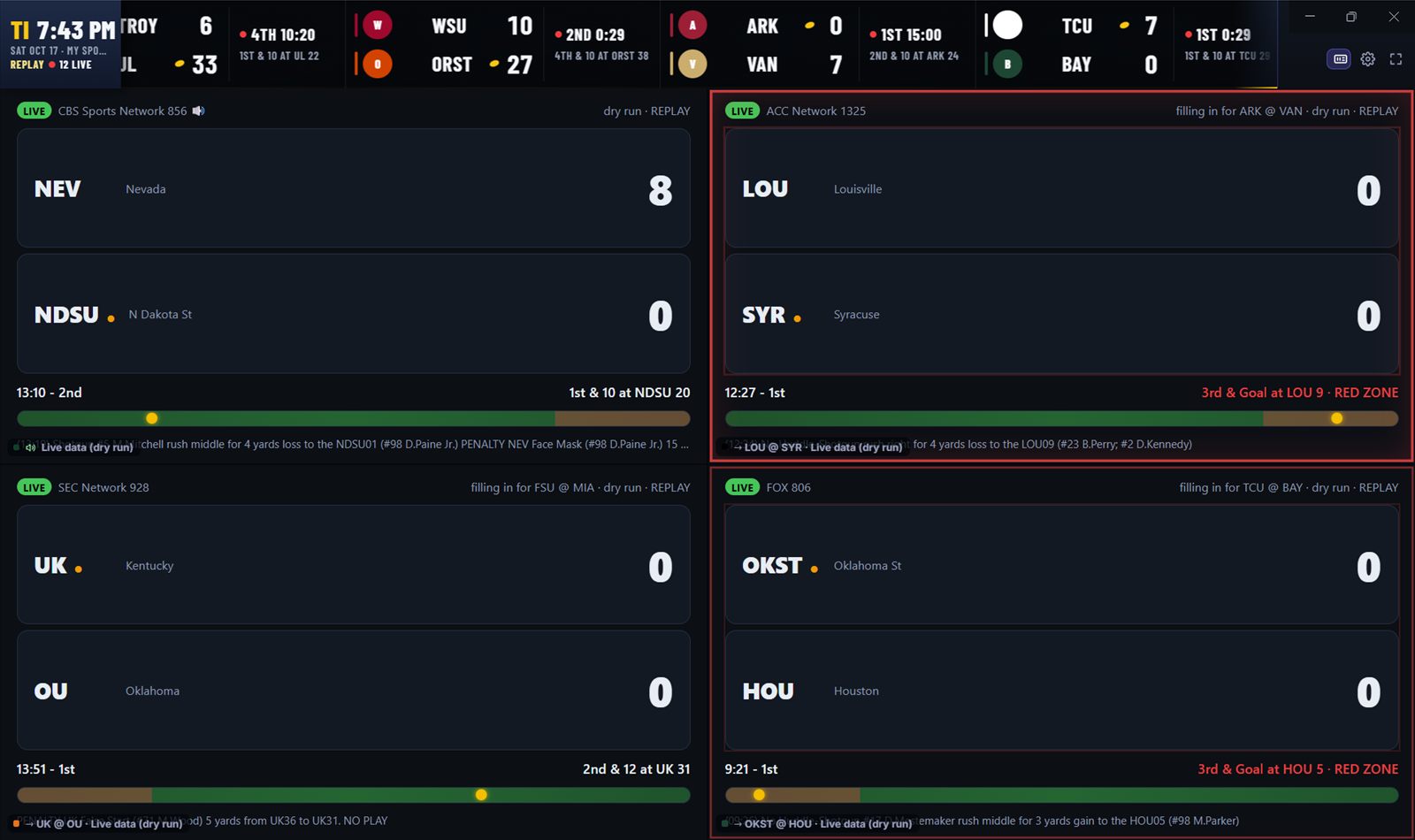
How a switch works, replayed from real games: Arkansas at Vanderbilt, then Louisville and Syracuse.
Illustration from a replay of real games. Screens show your service's video in the app.
Watch your game.
Arkansas at Vanderbilt, end of the 1st. Each screen follows its own game, on your TV service's own channel.
Then it cuts to commercial.
A kickoff after a score means a long break. TappedIn forecasts each stoppage from breaks measured in real games. Incompletions and penalties never trigger a switch.
So the screen switches.
It fills in with the best game that's live right now, and tells you why: here, first and goal at the Louisville 10.
And comes right back.
As soon as your game shows a new play, the screen goes back. Or press Back to my game whenever you like.
Four games.
One window.
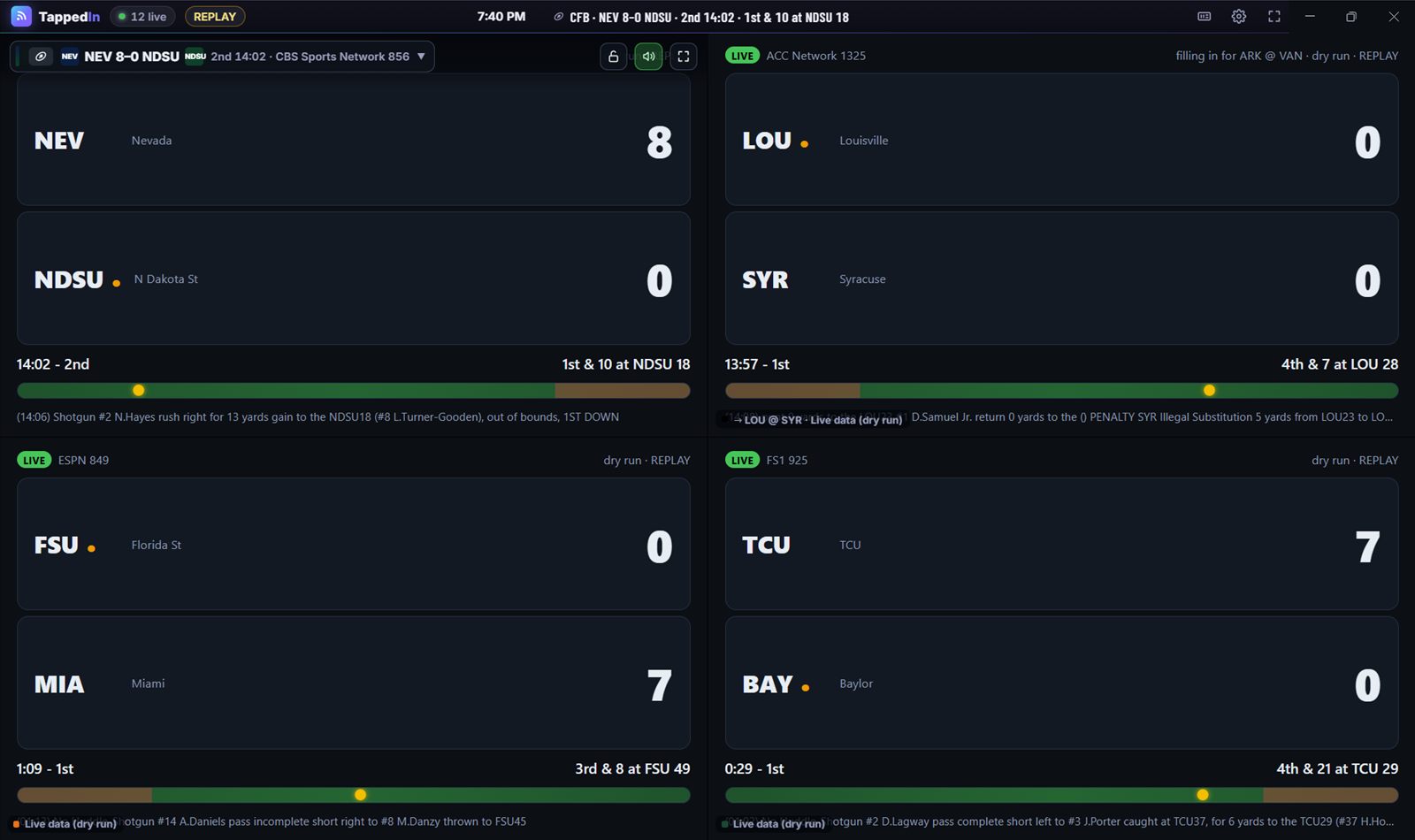
Each screen, its own game.
Four college football games here, or mix them: the NHL on one screen, the NBA on another.
-
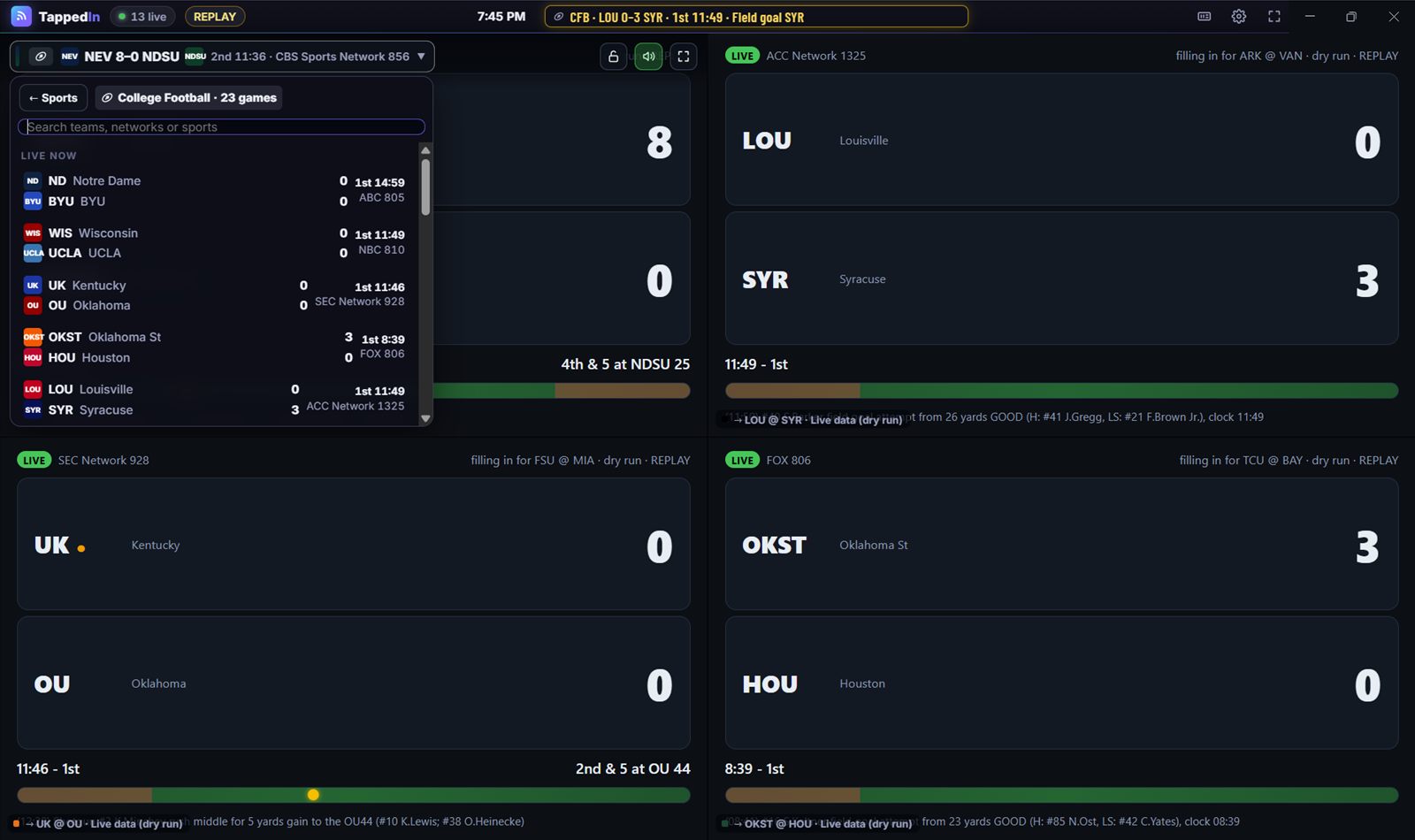
Pick from today's games.
Search by team or network, and see at a glance which ones your lineup carries.
Fill the window with one.
Double-click a screen, or press 1 to 4. The others keep playing and switching behind it, so going back is instant.
The best game,
in three tiers.
When a screen needs a fill-in, TappedIn looks in this order, and every switch says which tier it came from.
Same sport
That sport's biggest moments first: a drive in the red zone, a power play, clutch time, match point.
A sport another screen is watching
Ranked by a 0 to 100 excitement score: how close, how late, and what's happening.
Any sport you follow
A tight soccer match is a great way to wait out a football timeout.
Halftime.
Final. Covered.
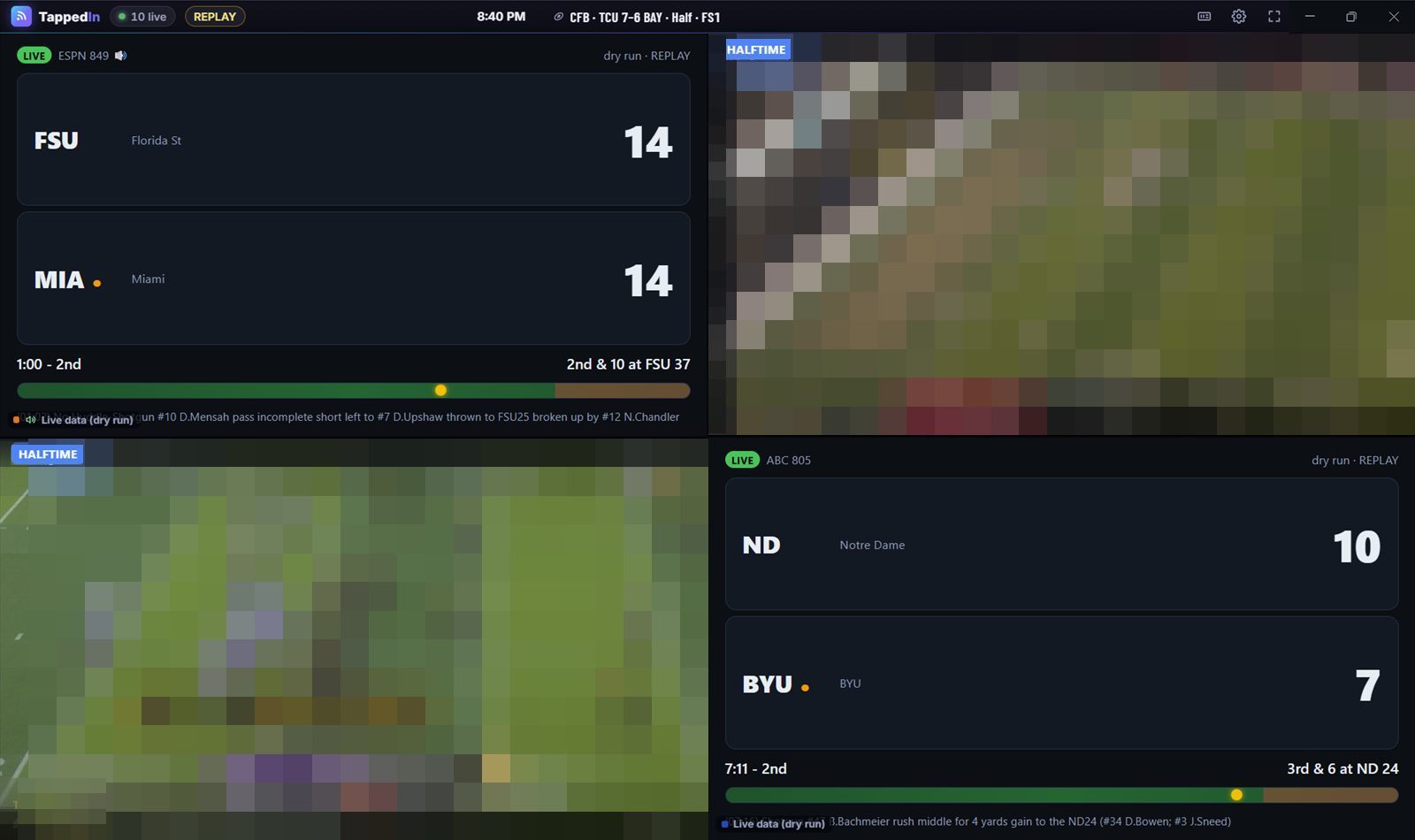
Halftime highlights.
At halftime or a hockey intermission, the screen plays a highlights reel, same sport first, and a scores board, while the game keeps going underneath so the second half starts instantly.
Highlight video blurred for this page.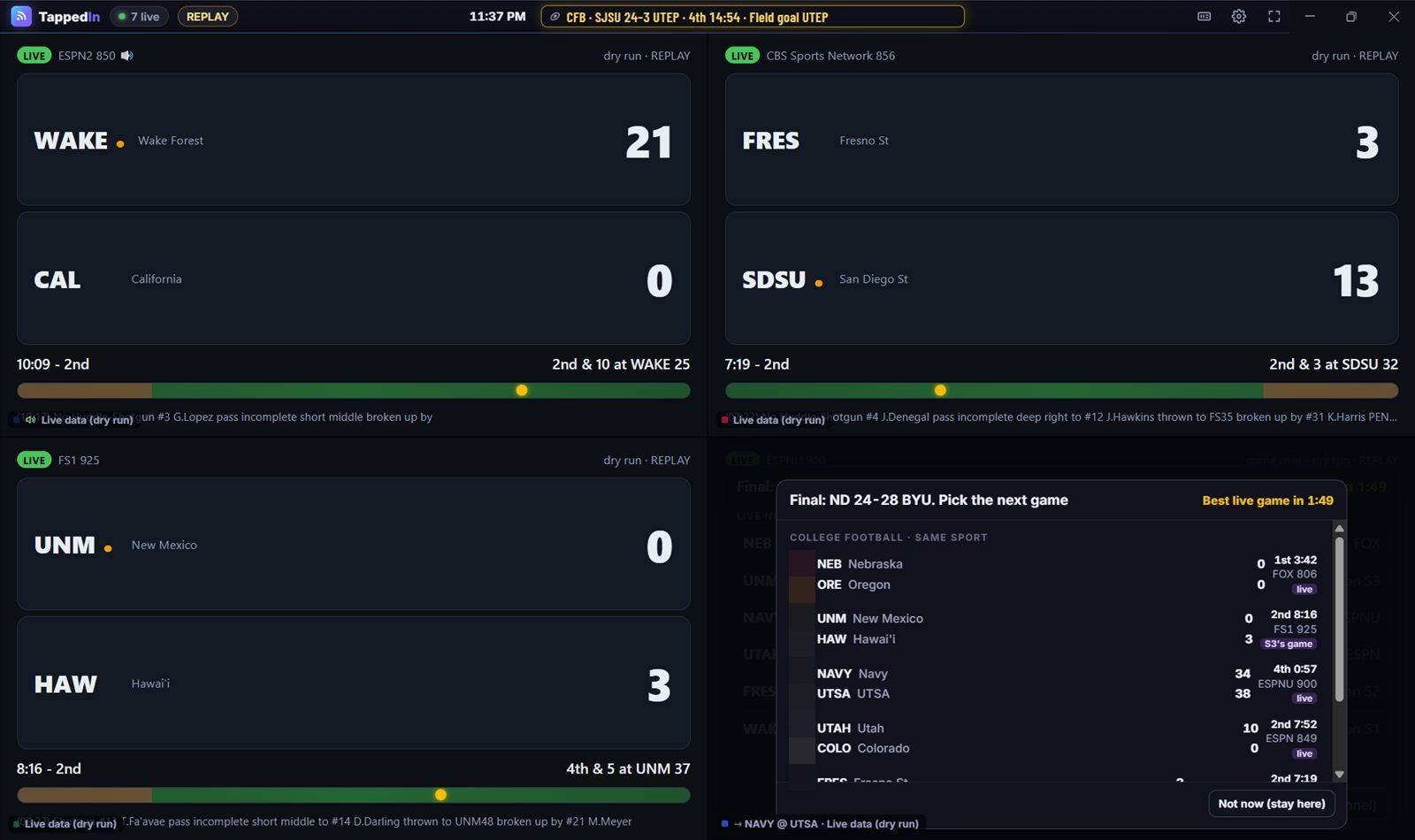
Game over? Pick the next one.
When a game ends, a picker opens in that screen with what's live now, same sport first, and a countdown. Pick one, or let TappedIn put the best live game on for you.
You stay
in control.
-
Lock a screen
A locked screen never switches on its own.
-
Back to my game
One click returns a screen to its own game, any time.
-
Choose the sound
Pick whose sound you hear, one screen at a time.
-
Big and mini tickers
A scrolling score ticker for every sport, or a one-line ticker by the clock that jumps to scores and big moments.
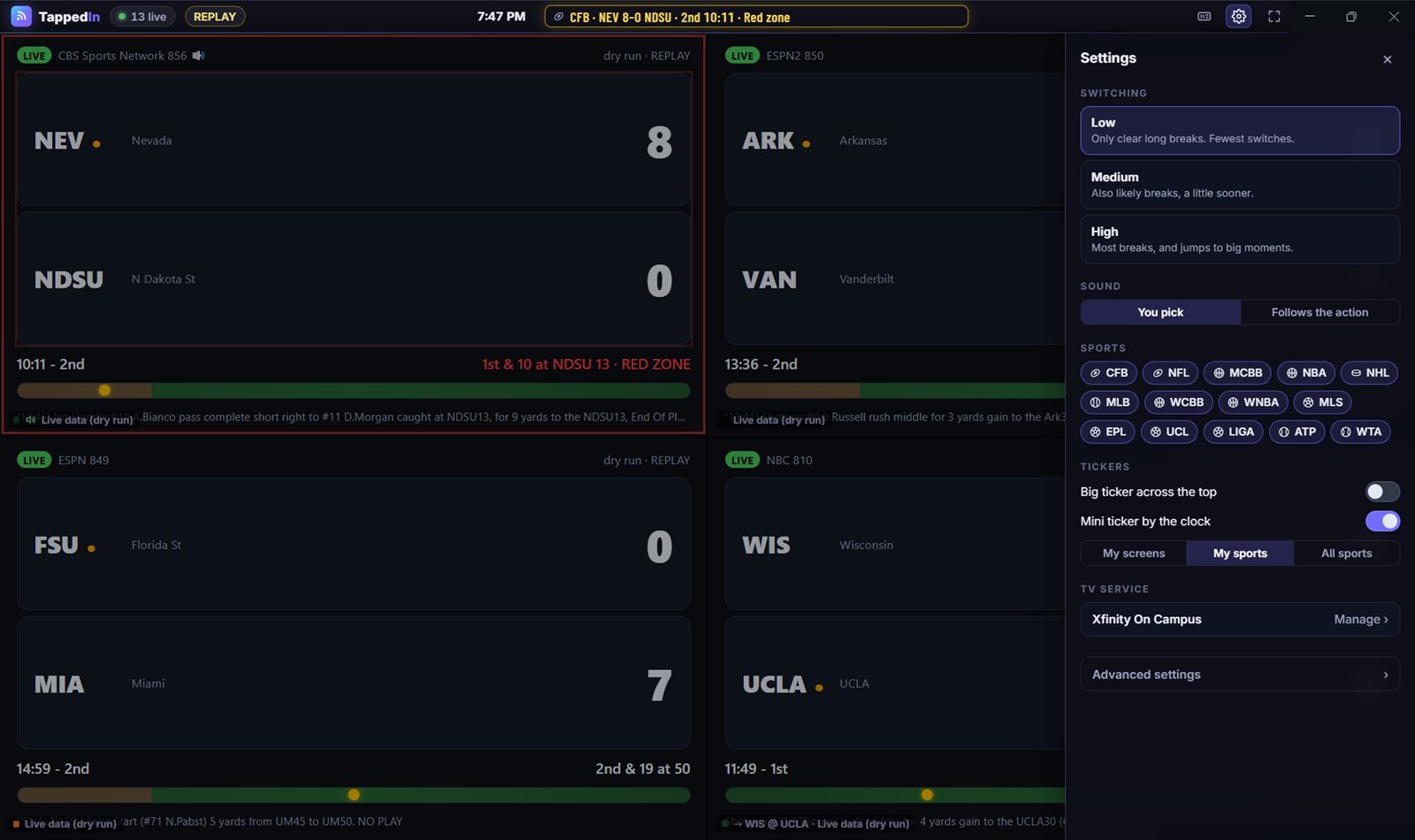
Switching, as eager as you like.
Set the sensitivity for every sport, or one sport at a time.
- LowOnly clear long breaks. The default.
- MediumSwitches for more breaks.
- HighMost stoppages, and jumps to big moments.
Knows a timeout
from a foul shot.
Each sport has its own break detector, built from that sport's measured stoppages.
Football
College football · NFL
Switches for: Ends of quarters, kickoffs after scores, injuries, the NFL's two-minute warning, and timeouts once the quiet shows a TV break.
Hot moments: A drive in the red zone, the two-minute drill, overtime
Basketball
Men's college basketball · Women's college basketball · NBA · WNBA
Switches for: Official TV timeouts and full timeouts, ends of quarters. Never fouls, free throws or baskets.
Hot moments: Crunch time and clutch time, overtime
Hockey
NHL
Switches for: TV timeouts and the end of regulation. Intermissions get the highlights reel.
Hot moments: Power play, a one-goal game late, overtime and shootouts
Baseball
MLB
Switches for: Between innings, at Medium or High sensitivity. At Low, baseball screens stay put.
Hot moments: No-hitter in the 6th or later, bases loaded, extra innings
Soccer
MLS · Premier League · Champions League · La Liga
Switches for: Never while the ball is in play (soccer has no commercials then). Halftime gets the reel. Soccer makes a great fill-in for other sports' breaks.
Hot moments: Close game from 75', stoppage time, extra time, shootouts
Tennis
ATP · WTA
Switches for: Set breaks, plus changeovers at Medium or High. Rain delays and suspensions at every level.
Hot moments: Match point, set point, break point, tiebreaks, deciding sets
Bring the TV
you already have.
TappedIn plays your service's own web player, so you need your own account: campus TV that comes with your housing, or a TV service you pay for at home.
- Xfinity On CampusStableCampus TV · streams at once: 1 documented
- Apogee Stream2ExperimentalCampus TV · streams at once: setup measures it
- Cox Contour on CampusExperimentalCampus TV · streams at once: 1 documented
- SpectrumUExperimentalCampus TV · streams at once: setup measures it
- Cox ContourExperimentalHome TV service · streams at once: setup measures it
- DIRECTV (streaming)ExperimentalHome TV service · streams at once: setup measures it
- ESPN (web player)ExperimentalHome TV service · streams at once: 3 documented
- FuboExperimentalHome TV service · streams at once: 10 documented
- Hulu + Live TVExperimentalHome TV service · streams at once: 2 documented
- Sling TVExperimentalHome TV service · streams at once: setup measures it
- Spectrum TVExperimentalHome TV service · streams at once: setup measures it
- Xfinity StreamExperimentalHome TV service · streams at once: 5 documented
- YouTube TVExperimentalHome TV service · streams at once: 3 documented
Stable: used with a real account. Experimental: built from the service's documentation and not yet tested with a real account. If it doesn't work, the app's Diagnostics can usually fix it: fix your service. Not supported yet: Peacock and Paramount+, whose games are one-off event streams rather than channels.
Your password
stays yours.
Sign in on your service's page
TappedIn opens your service's real sign-in page, and your school's SSO and Duo work as usual. It never types, stores or sends your password, and never accepts terms for you.
Everything runs on your computer
It talks only to your TV service and ESPN's public scores. No accounts, no tracking. Sign-in cookies stay on your computer, separately for each service.
It never records the game
It plays your service's own player and changes channels the way you would. It never records, extracts or redistributes video, and never touches copy protection.
Two minutes
to kickoff.
Pick your service
Choose your TV service, or search for your school to find its campus TV.
Sign in on its own page
TappedIn opens your service's real sign-in page. School SSO and Duo work as usual.
Choose your games
TappedIn checks your channels and how many streams your plan plays, then picks great games to start.
Watch
Breaks, halftimes and finals take care of themselves.
Questions.
Do I need a subscription?
Yes. TappedIn doesn't provide any channels. It plays the channels you already get from your own campus TV service (for example Xfinity On Campus through your housing) or a TV service you subscribe to. Games on networks your lineup doesn't carry are greyed out and never picked.
Is my password safe?
TappedIn never sees your password. You sign in on your service's own page, in a window TappedIn opens, exactly as you would in a browser. TappedIn never types, stores or sends your password, and it never accepts terms or agreements for you. Only the browser's normal sign-in cookies are kept, on your computer, separately for each service.
Why didn't it switch during a commercial?
ESPN's live data doesn't say when a commercial starts, so TappedIn forecasts how long each stoppage will last from real stoppages measured in recorded games. It's a very good guess, not a certainty: on Low (the default) it catches about 80% of long college-football breaks while skipping short ones, and ESPN's data runs about 25 seconds behind. Choose Medium or High in Settings to switch for more breaks, or use a screen's game list to switch yourself.
My service isn't listed, or it doesn't work. What can I do?
Experimental services sometimes need a fix when their website changes. Open Diagnostics (from setup, or Settings → TV service): it tests each step and lets you correct what fails, no coding needed. Then press Report a bug to email us the results so everyone gets the fix. See fix your service. If your service isn't listed at all, email us and tell us which one.
Is there a Mac version?
Yes, for Apple Silicon and Intel Macs. It isn't notarized by Apple yet, so the first time you open it you allow it once in System Settings: see the install guide. TappedIn also runs on Windows 10 and 11 (64-bit).
Does it record or share the games?
No. TappedIn plays your service's own player and changes channels the way you would. It never records, extracts or redistributes video and never touches copy protection. Everything runs on your computer.
How many streams does it use?
One per screen. During setup TappedIn adds screens one at a time to see how many your plan plays at once, then sizes the grid to fit (1 to 4 screens) and tells you why.
Ready for
kickoff?
Free. Windows 10 & 11 or macOS. Bring your own TV service.
TappedIn is a desktop app for Windows and Mac. Send yourself the link and open it on your computer.