
Install TappedIn
About five minutes, start to finish. You don't need anything else installed first. On a Mac? Skip to installing on a Mac.
What you need
- Windows 10 or 11, 64-bitNo admin rights needed.
- Or a Mac with macOS 13 Ventura or laterApple Silicon or Intel.
- About 1 GB of free spaceThe app takes about 600 MB.
- Your own TV serviceCampus TV or a home TV service TappedIn supports.
- Internet fast enough for a few HD streamsEach screen is one stream. Campus TV usually needs the campus network.
On Windows, step by step
-
Download the installer
Open this page on your computer to download TappedIn: this site
The file is called
TappedIn-Setup-<version>.exe. -
If your browser asks, keep the file
Because TappedIn is new and not downloaded by many people yet, Edge or Chrome may say the file "isn't commonly downloaded". Open the downloads list, choose Keep (in Edge: the … menu, then Keep, then Keep anyway).
Illustration. The exact wording depends on your browser. -
Run it, and get past SmartScreen
Double-click the file. Windows may show a blue "Windows protected your PC" screen. That's because the installer isn't signed with a paid code-signing certificate yet, not because anything is wrong with it. Click More info, then Run anyway.
Windows protected your PCMicrosoft Defender SmartScreen prevented an unrecognized app from starting. Running this app might put your PC at risk.
More infoRun anywayDon't runIllustration. "Run anyway" only appears after you click "More info". Only do this for a file you downloaded from this site. If you're unsure, delete it and download it again here.
-
Click through the installer
It installs just for you, to
%LOCALAPPDATA%\Programs\TappedIn, so it doesn't ask for an administrator password. Choose whether you want a desktop shortcut, and leave Launch TappedIn ticked on the last page. Everything TappedIn needs is included. -
First-run setup
The first start opens setup:
- Pick your service. Search for your school to find its campus TV.
- Sign in on the service's own page, in a window TappedIn opens. School SSO and Duo work as usual. Accepting a service's terms is up to you; TappedIn never clicks them.
- Channels. TappedIn reads your service's guide to see which sports networks you get.
- Playback. One channel plays on screen 1.
- Streams. TappedIn adds screens one at a time to see how many your plan plays at once, then sizes the grid.
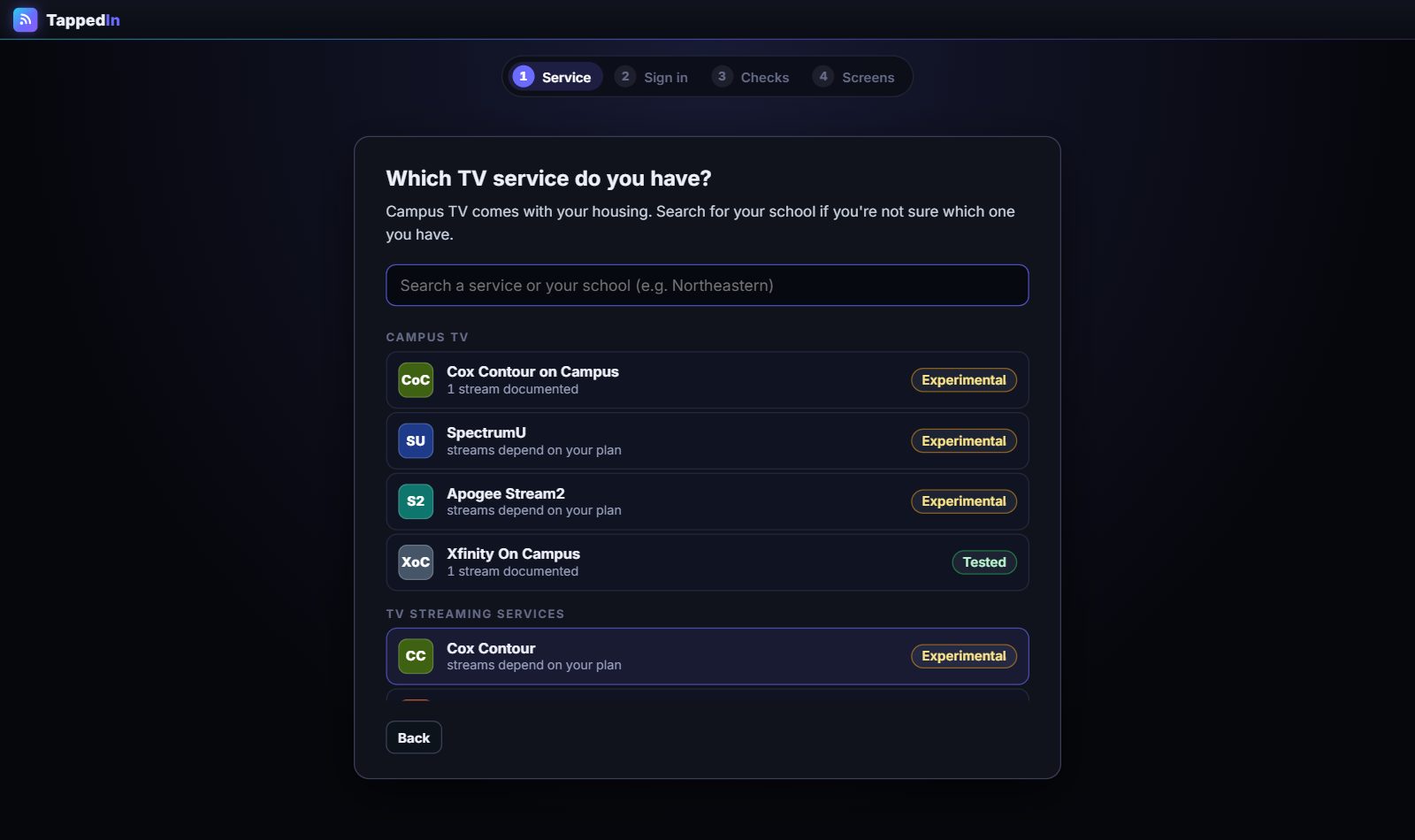
If a step gets stuck, press Having trouble? to open Diagnostics, or see fix your service.
On a Mac, step by step
-
Download the disk image
The file is called
TappedIn-<version>.dmg. The same file works on Apple Silicon and Intel Macs. -
Drag TappedIn to Applications
Double-click the
.dmgin your Downloads. In the window that opens, drag TappedIn onto the Applications folder. Then eject the disk image: click the eject button next to TappedIn in the Finder sidebar.
The first time you open it
TappedIn isn't notarized by Apple yet, so macOS asks you to allow it once. These steps are for macOS 15 and later:
- Open TappedIn from Applications. macOS says it can't verify that TappedIn is free of malware. Click Done.
- Open System Settings → Privacy & Security and scroll down to Security. Next to "TappedIn was blocked to protect your Mac", click Open Anyway.
- Confirm with your password or Touch ID, then click Open.
After that, TappedIn opens normally. On macOS 14 and earlier you can instead Control-click TappedIn in Applications, choose Open, then click Open again.
Only do this for a file you downloaded from this site. If you're unsure, delete it and download it again here.
Then TappedIn runs the same first-run setup as on Windows.
Updating and uninstalling
- Update on Windows: download the newest installer here and run it the same way. Your settings and sign-ins are kept.
- Uninstall on Windows: Windows Settings → Apps → Installed apps → TappedIn → Uninstall. Your settings stay in the
.statefolder inside the install folder and your service sign-ins in%LOCALAPPDATA%\TappedIn, in case you reinstall. Delete both folders to remove them too. - If you edited
config\tappedin.config.json5, an update keeps your copy astappedin.config.json5.baknext to it. - Update on a Mac: download the newest
.dmghere and drag TappedIn to Applications again, choosing Replace. - Uninstall on a Mac: quit TappedIn and drag it from Applications to the Trash.
If something goes wrong
- The download link says it's unavailable: a new version is probably being published. Try again in a few minutes.
- A screen is black but the sound plays: TappedIn turns off a Windows video setting that causes this on some laptops. If it still happens, tell us.
- "Maximum number of devices" or a stream limit: your plan plays fewer streams at once than you have screens. TappedIn shows live data tiles on the extra screens.
- Anything else: report a bug.